ASUS ZenBook Data Recovery Services
- Details
- Written by: Seattle Data Recovery
- Category: ASUS ZenBook Data Recovery Services
- Hits: 13
The Failure Scenario
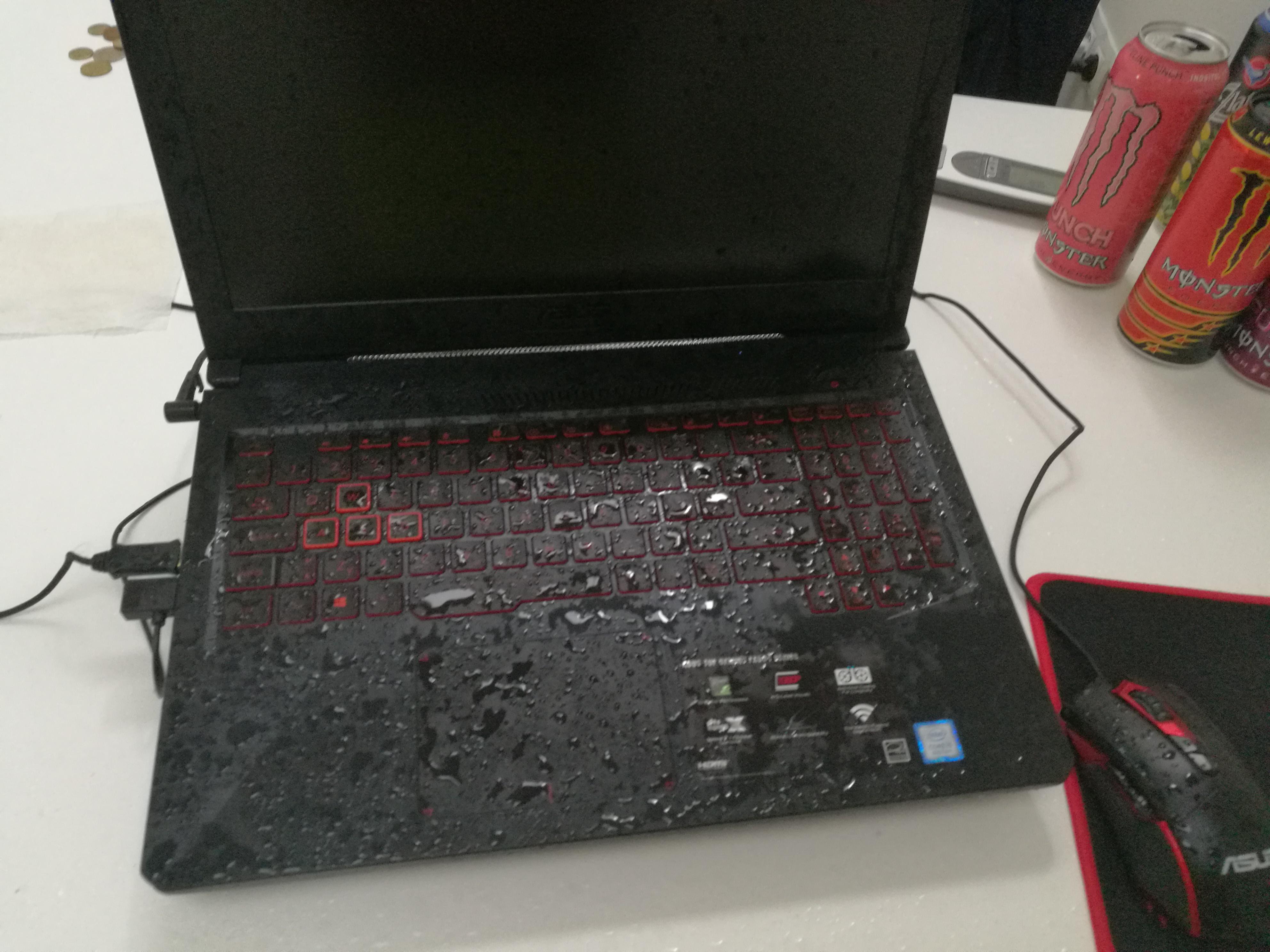
A cup of coffee, water, or wine spills directly onto your ZenBook keyboard. The laptop instantly cuts power and shuts off. Weeks later, after drying out in rice or open air, the device still refuses to turn on, charge, or respond to any inputs.
The Storage Challenge
Because ZenBooks are engineered to be incredibly compact, there are no internal barriers separating the keyboard from the vital logic board components below. Liquid instantly bridges live electrical circuits, causing immediate short circuits. Over time, the minerals in the liquid react with electricity to form green copper corrosion, which physically eats away at the microscopic traces connecting the CPU to the NVMe storage lanes or soldered NAND chips.
The Professional Recovery Process
Placing a liquid-damaged laptop in rice does not stop corrosion; it accelerates it. We charge an upfront diagnostic fee to completely disassemble the chassis and inspect the raw motherboard under a stereo microscope.
- Chemical Ultrasonic Cleaning: The logic board is stripped of its heat sinks and placed into an industrial ultrasonic tank filled with a specialized, non-conductive chemical solvent. High-frequency sound waves blast away microscopic corrosion, dried sugars, and rust from underneath the soldered storage chips.
- Micro-Soldering Trace Reconstruction: Under the microscope, our engineers use silver jumper wire (thinner than a human hair) to manually bridge traces that were destroyed by corrosion. We replace burned capacitors along the primary power rail to safely deliver voltage back to the storage controller.
- Targeted Imager Extraction: Once the board achieves basic electrical stability, it is connected to a hardware imager. We bypass the laptop's boot sequence entirely to clone the data blocks before the damaged circuits fail permanently.
- Details
- Written by: Seattle Data Recovery
- Category: ASUS ZenBook Data Recovery Services
- Hits: 12
The Failure Scenario
When you turn on your ZenBook, it bypasses Windows completely and boots directly into the ASUS EZ Flash UEFI BIOS screen. No matter how many times you save and exit, restart, or change settings, the laptop immediately loops right back to the utility menu.
The Storage Challenge
If you navigate to the "Storage" or "Boot Priority" section in the BIOS, the laptop will often state "No NVMe Storage Found" or list the drive under a generic factory name with 0 MB capacity. This error occurs because the solid-state drive's controller has suffered internal firmware corruption. The drive is getting power, but its internal operating microcode has crashed, forcing it into a protective "safe mode" lock.
The Professional Recovery Process
Data recovery software cannot access the drive because the Windows operating system cannot see it. After our initial paid diagnostic inspection, we bypass the computer's standard operating environment:
- Safe Mode Bridging: We remove the M.2 SSD (if it is a modular version) or tap into the drive's system diagnostic points on the motherboard. We then jump-start the drive into a specialized factory hardware mode.
- Firmware Patching: Utilizing advanced diagnostic hardware like the PC-3000 Flash system, our engineers upload a stable, modified version of the drive's microcode directly into its internal RAM.
- Translational Table Reconstruction: Solid-state drives use complex mapping tables to track where data is physically stored across flash cells. If these tables are corrupt, we use specialized utilities to emulate the translator. This grants us sector-level access to the raw data, allowing us to safely extract your files.
- Details
- Written by: Seattle Data Recovery
- Category: ASUS ZenBook Data Recovery Services
- Hits: 11
The Failure Scenario
Your older ASUS ZenBook (such as the early UX31 or UX32 series) starts running incredibly slow, freezes during simple tasks, or fails to boot past a flashing cursor. If you listen closely to the chassis, you can hear a faint clicking, ticking, or beeping sound coming from beneath the keyboard.
The Storage Challenge
Early generations of the ZenBook line relied on ultra-slim 5mm or 7mm mechanical hard disk drives (HDDs) or hybrid SSHD storage units. Because laptops are constantly moved, these mechanical parts are highly susceptible to physical kinetic shock. A hard drop or a bump while the hard drive is spinning can cause the read/write heads to slam into the spinning glass or aluminum magnetic platters.
The Professional Recovery Process
Continuing to power on a clicking hard drive will permanently destroy your data. The clicking sound means mechanical parts are physically scraping the data layer. Our paid diagnostic fee covers removing the drive safely to prevent further damage.
- Cleanroom Mechanical Reconstruction: We transfer the fragile mechanical drive into a certified cleanroom environment. This dust-free air prevents microscopic particles from landing on the open platters.
- Donor Component Matching: Our engineers find an exact matching donor drive (same model, firmware version, and head map). Under a microscope, we swap out the broken head stack assembly or seized spindle motor with healthy donor parts.
- Hardware-Enforced Imaging: Once stabilized, the drive is connected to a hardware imager that carefully controls power levels and read commands, extracting the maximum amount of data before the temporary mechanical parts degrade again.
- Details
- Written by: Seattle Data Recovery
- Category: ASUS ZenBook Data Recovery Services
- Hits: 10
The Failure Scenario
You press the power button on your ASUS ZenBook, but the laptop is completely dead. There are no status lights, no fan spinning, and no signs of life. This problem frequently follows a minor liquid spill, a sudden power surge, or component degradation on the motherboard.
The Storage Challenge
In many modern ultra-thin ZenBook lines (such as the ZenBook Flip, Duo, and newer UX series), the solid-state drive is not a removable card. To save internal space, ASUS solders the NAND flash storage memory chips and the controller directly onto the main motherboard. If the motherboard dies, your data is trapped on a dead piece of fiberglass.
The Professional Recovery Process
Standard computer repair shops cannot help in this scenario because there is no drive to remove. We begin with a paid diagnostic evaluation to test the logic board under a microscope.
- Micro-Soldering & Circuit Diagnostics: Our engineers trace the power rails on the ZenBook motherboard using detailed schematics. We identify and replace shorted capacitors, blown fuses, or failed power management integrated circuits (PMICs).
- Temporary Power Restoration: The goal is not to fix the laptop permanently, but to repair the circuitry just enough to stabilize the board, initialize the storage controller, and create a bit-by-bit clone of the flash memory.
- Direct Chip-Off Recovery: If the motherboard is too badly warped or corroded from liquid, we perform a chip-off procedure. We carefully desolder the raw NAND flash chips using a professional rework station, read them using hardware programmers, and manually reconstruct the file system structure.
- Details
- Written by: Seattle Data Recovery
- Category: ASUS ZenBook Data Recovery Services
- Hits: 10
The Failure Scenario
Your ZenBook Duo (dual-screen) or ZenBook Fold (flexible OLED) is dropped or compressed in a backpack. While the internal computer components are humming and the status lights indicate it is fully running, all internal displays remain completely black, or the touch digitizer is shattered and rendering random, chaotic phantom inputs that prevent you from logging in.
The Storage Challenge
The computer itself is alive, but you have no visual feedback or control over the operating system. Because ZenBook screen connections use high-bandwidth proprietary display connectors directly on the motherboard, connecting an external monitor via USB-C or HDMI does not always automatically clone the screen—especially if the laptop is stuck at a pre-login Windows Hello facial recognition check or an encryption prompt.
The Professional Recovery Process
We charge a diagnostic fee to safely secure the device and prevent accidental file deletion caused by the shattered touchscreen generating "ghost touches."
- Touch Digitizer Disconnection: We carefully open the casing and physically isolate the screen ribbon cables from the motherboard. This stops the broken glass from sending erratic commands that could accidentally format folders or trigger a security lockout.
- Hardware Extraction via Laboratory Benches: Rather than risking further damage to an expensive, specialized chassis, we extract the internal high-speed NVMe storage media entirely.
- Forensic File Reconstruction: The removed drive is mounted onto our write-blocked lab hardware, bypassing Windows user account security boundaries entirely to pull your user profiles, desktop documents, local application databases, and system configurations onto a secure external drive.