In today's digital landscape, access to data is crucial for both personal and professional endeavors. However, among the myriad technological advancements, issues such as unrecognized disk errors and failing SSDs can significantly impede access to essential information. Seattle Data Recovery demystifies the causes, symptoms, and troubleshooting methods of unrecognized disk errors, particularly on devices such as hard drives and SSDs. Additionally, it provides insights into recognizing warning signs of a bad SSD and making informed decisions regarding data recovery services, specifically focusing on Seattle Data Recovery providers.
Understanding Unrecognized Disk Errors
An unrecognized disk error in Windows indicates that the operating system cannot identify or access a storage device. This scenario can arise with various devices, including traditional hard drives and USB drives, resulting in significant complications when accessing stored data. Understanding what constitutes an unrecognized disk error and acknowledging its implications on data accessibility is essential for any computer user.
When faced with an unrecognized disk error, users often become frustrated as access to critical data is obstructed. The inability to access files not only affects personal use but also disrupts professional workflows, which can be detrimental in a business setting. Subsequently, users may need to troubleshoot methods to rectify the error, potentially preventing the loss of important information.
Causes of Unrecognized Disk Errors
Physical Damage and Connection Issues
One of the primary causes of unrecognized disk errors is physical damage to the disk or its connection cables. Disruptions during physical transport or mishandling can lead to severe damage, rendering the operating system unable to recognize the device. Similarly, the cables connecting the disk to the computer may fray or break, further exacerbating connection issues and leading to unrecognized errors.
Users must ensure that all connections are secure. Loose connections can cause intermittent identification of the disk, leading the operating system to display an error message. Inadequate connection integrity significantly contributes to uncertainty regarding the disk's operational status. Therefore, users should periodically inspect cables and connections to maintain a seamless experience with their storage devices.
Driver Problems and Boot Sector Damage
Another contributing factor to unrecognized disk errors is outdated or corrupted drivers for the disk controller. Drivers serve as crucial communication channels between the operating system and hardware components. Consequently, when the drivers malfunction, the operating system may struggle to interface effectively with the disk, leading to unrecognized errors.
Damage to the boot sector—an essential part of the disk required for booting—can cause problems. If the boot sector is damaged, it prevents the operating system from accessing the disk, creating another potential complication. Users should remain vigilant about the health of their disk's boot sector to prevent prolonged downtime when encountering unrecognized disk errors.
Recognizing Symptoms of Unrecognized Disk Errors
Visibility Issues in File Explorer
Users encountering unrecognized disk errors may first notice that the disk fails to appear in Windows File Explorer. This lack of visibility can trigger concern as users rely on File Explorer to navigate and access their data. When a disk does not appear in the available drives list, it creates significant obstacles to accessing files stored on that device.
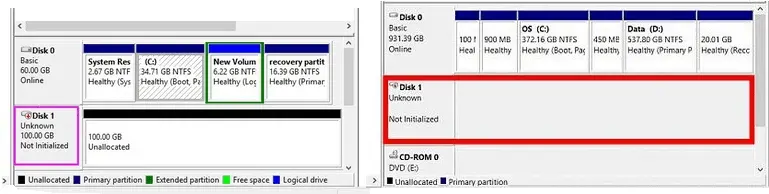
The absence of the disk in File Explorer often necessitates further investigation. Users can refer to Windows Disk Management to find additional information about the disk's status. If the disk manifests as "Unknown" or "Not Initialized" in this interface, it underscores the severity of the unrecognized disk error and requires immediate attention.
Error Messages and System Performance
In conjunction with visibility issues, users may also experience various error messages when attempting to access an unrecognized disk. Common messages such as "Disk not initialized," "Disk structure is corrupted and unreadable," or "Non-system disk or disk error" can create a heightened sense of urgency. These messages can indicate that immediate action is necessary to safeguard potentially valuable data.
A failing disk may exhibit performance issues, resulting in abnormal system behavior. Users may experience an unresponsive system or prolonged loading times, a common indication that the disk is struggling to function correctly. As performance issues escalate, users must consider taking corrective measures to restore functionality.
Essential Troubleshooting Steps
Assessing Connections and Hardware
When diagnosing an unrecognized disk error, users should first assess all physical connections. Ensuring that the disk is firmly connected to the computer using a functional cable is paramount. Testing the disk on an alternate USB port can rule out port-related issues, offering a straightforward solution to the problem.
If the situation persists, users should consider evaluating the disk using another computer. This approach will help determine if the issue is computer-specific or an inherent problem with the disk itself. Conducting these initial checks can save users time and frustration when dealing with unrecognized disk errors.
Updating Drivers and Running CHKDSK
If hardware connections are secure but the disk remains unrecognized, the next step is to check the drivers associated with the disk controller. Updating outdated or corrupted drivers can alleviate communication issues between the disk and the operating system. Users can find driver updates via the device manufacturer's website or through the Windows Device Manager.
Running the CHKDSK command-line tool is another valuable step to scan the disk for errors and attempt repairs. Users can access this feature by inputting "CHKDSK [drive letter]: /f" in the command prompt. This tool can identify filesystem errors and rectify them, providing another opportunity to restore disk access.
Initializing and Formatting the Disk
Managing Initialization Procedures
If the disk remains unrecognized in Disk Management, users should consider that it may not have been initialized. New or recently formatted disks require initialization to become functional. Users can navigate to Disk Management, right-click the disk, and select the initialization option to begin this process.
It is vital to note that initializing the disk will erase all existing data. Therefore, users should approach this step with caution and proceed only if data recovery measures have been taken and the data is of significant importance.
Formatting and Data Recovery Solutions
If proper formatting has not occurred or the disk exhibits corruption, the next step is to format the disk. To complete this task, users can initiate formatting from within Disk Management by right-clicking the disk and selecting Format.
Before undertaking any formatting actions, users should consider the implications for their data. Data recovery services, such as those provided by Seattle Data Recovery, can help recover essential files before formatting or initialization, ensuring that vital data is not lost during troubleshooting methods.
Identifying Signs of a Failing SSD
Early Warning Indicators
A failing SSD can present various issues. These may include file system errors, read-only errors, and bad block errors, indicating potential failure. Users encountering these symptoms should remain vigilant about their SSD health; early detection is paramount for effective data management.
Read-only errors occur when a user attempts to write to a file, preventing any changes. Consequently, this can hinder users' abilities to save new files or overwrite existing data, indicating a significant obstacle that may demand an examination of drive health.
File Corruption and System Crashes
Corrupted files also indicate that an SSD may be failing. Users may notice that certain documents or multimedia files become unreadable, reflecting underlying defects within the SSD. This deterioration presents a risk, as files may become permanently inaccessible without adequate intervention.
Random crashes and system freezes can further illustrate SSD struggles. If the operating system consistently experiences blue-screen errors or reboots at unexpected intervals, it may be a clear indicator of underlying SSD issues that require immediate attention.
Evaluating Performance Issues in SSDs
Slow Performance and Long Save Times
Another aspect of a failing SSD includes noticeable performance declines. Users may experience sluggishness when reading or writing files or when launching applications. Tasks that once completed swiftly may take longer, indicating that the SSD may be handling data incorrectly.
Extended save times, particularly with larger files, can also be a classic symptom of a bad SSD. Users may experience unusually long wait times for file transfers to complete, or, in more severe instances, may fail to save files altogether. Addressing these performance issues is vital, as they may foreshadow more serious SSD failures if left unaddressed.
Overheating and Boot Failures
If a user detects that their SSD feels excessively hot to the touch, it may indicate potential internal component problems. High heat levels can indicate that the SSD is struggling to manage data properly, and users should assess the drive's health promptly.
Boot failures represent a critical concern regarding SSD functionality. If the system is unable to boot or consistently defaults to the BIOS, it indicates a possible critical issue with the drive. This situation necessitates immediate evaluation to prevent total data loss.
Taking Action: Data Recovery Services
Understanding the Role of Data Recovery
When dealing with unrecognized disk errors or signs of SSD failure, data recovery services become indispensable. Seek out providers like Seattle Data Recovery, who specialize in retrieving data from malfunctioning drives. These professionals are proficient in utilizing advanced techniques to recover critical information that may otherwise remain inaccessible.
Engaging data recovery experts is a proactive approach to ensuring information security and mitigating data loss risks. Their expertise can be invaluable in navigating the complex landscape of data recovery, particularly when users face severe hardware issues.
Choosing the Right Service Provider
Users must consider which data recovery service provider best fits their situation. Evaluating performance reviews, success rates, and pricing structures can provide valuable insights into each company's reliability, enabling informed decision-making. Trust is essential when dealing with critical data recovery, as users should rely on professionals committed to data integrity and customer satisfaction.
Understanding the data recovery process and what to expect can instill confidence in users as they proceed with their recovery efforts. Being well-informed about the steps involved will not only alleviate concerns but also foster a proactive approach to data preservation.
Proactivity in Data Management
Understanding and addressing unrecognized disk errors and failing SSDs is essential in today's digital age. Users must remain vigilant about the health of their storage devices and promptly troubleshoot any issues that arise. Recognizing symptoms early, such as visibility issues in File Explorer or performance declines, can empower users to take corrective action before irreversible data loss occurs.
Leveraging tools like CHKDSK and collaborating with data recovery services, such as Seattle Data Recovery, can prove invaluable for preserving critical data. Users must recognize the importance of regular backups and proactive maintenance to effectively safeguard their data.
As technology continues to evolve, fostering a robust understanding of potential pitfalls associated with storage devices enables users to navigate challenges with confidence. By staying informed about unrecognized disk errors and symptoms of failing SSDs, users can ensure that their systems remain operational and their data remains secure.