Unrecognized Disk Errors
An unrecognized disk error in Windows signifies that the operating system is unable to identify or access a storage device, such as a hard drive or USB drive. This issue can severely limit your access to data stored on the affected disk and may necessitate troubleshooting to address the underlying problems. Recognizing the signs, potential causes, and solutions for unrecognized disk errors is crucial for maintaining data integrity and ensuring smooth computer operation.
In this comprehensive guide, we will explore various aspects of unrecognized disk errors, offering insights and actionable steps to help you diagnose and resolve these issues effectively. Whether you're a tech enthusiast or a casual computer user, understanding these concepts is essential for safeguarding your digital information.
Causes of Unrecognized Disk Errors
Physical Damage and Connection Issues
One of the most common causes of unrecognized disk errors is physical damage to the disk or the cables connecting it to the computer. Damaged cables may fail to transmit signals correctly, causing the system to ignore the device entirely. This situation necessitates a thorough inspection of the cables and connectors to ensure they are in good condition and firmly connected.
Connection issues can also stem from loose or faulty ports. If the connection between the disk and your computer is unstable, it may intermittently recognize the disk, resulting in inconsistent performance. Testing a different port or using an alternative cable can quickly determine whether the issue lies with the connection or the device itself.
Driver Problems and Boot Sector Damage
Another significant cause of unrecognized disk errors lies in driver-related issues. Outdated or corrupted drivers for the disk controller may impede the proper functioning of the storage device. When Windows fails to communicate effectively with the disk due to driver problems, it may not recognize the disk at all. Consequently, regularly updating or reinstalling relevant drivers is pivotal for maintaining system performance.
Additionally, boot sector damage can render a disk unrecognizable. The boot sector is a crucial area that allows a computer to start from a specific disk. If this sector becomes corrupted, the computer may experience difficulties accessing the disk, leading to an unrecognized disk error. Repairing the boot sector often requires advanced troubleshooting techniques and, in some cases, professional assistance.
Symptoms of Unrecognized Disk Errors
Visibility Issues in File Explorer
One primary symptom of unrecognized disk errors is that the disk fails to appear in File Explorer. If you connect a USB drive or external hard disk and it does not show up in the list of available drives, it suggests that the operating system cannot detect it. This situation can lead to frustration, especially if you need immediate access to crucial data.
Users often panic at this stage, but awareness of the situation can help alleviate anxiety. Understanding that this symptom indicates a potentially resolvable issue allows users to approach the situation with a systematic troubleshooting mindset. Notably, if the disk does not appear in File Explorer, checking Disk Management may reveal whether the system recognizes the device.
Error Messages and Disk Management Indicators
In addition to visibility issues, users may encounter specific error messages when dealing with unrecognized disks. Messages such as "Disk not initialized," "Disk structure is corrupted and unreadable," or "Non-system disk or disk error" can signal underlying problems with the storage device. Being familiar with these error messages can help users identify the most effective resolution strategies.
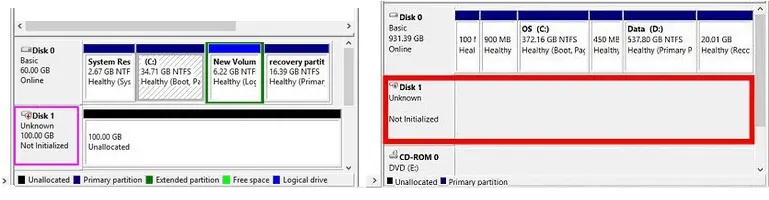
Disk Management also plays a crucial role in diagnosing unrecognized disk issues. When users access Disk Management, they may find the disk labeled as "Unknown" or "Not Initialized." This information can provide significant insight into the possible causes of the error, aiding further troubleshooting and guiding the next steps for resolution.
Troubleshooting Steps for Unrecognized Disk Errors
Step 1: Checking Connections
The first step in troubleshooting an unrecognized disk error is to verify the physical connections. Ensure that the disk is securely connected to the computer using a functional cable. Loose or faulty cables are common culprits for connectivity issues, and a simple adjustment can often resolve the problem.
In addition, consider testing the disk on a different USB port or connecting it to another computer. This process can help identify whether the problem stems from the disk itself or the original port being used. If the disk is recognized elsewhere, the issue may lie with the original system rather than the disk.
Step 2: Driver Updates
If physical connections appear secure, the next logical step is to check for driver problems. Update the drivers for the disk controller and the disk itself. Outdated or corrupted drivers can cause communication failures between the disk and the operating system, resulting in an unrecognized disk error.
To update drivers, access the Device Manager in Windows and locate the disk controller. Right-click on the device and select "Update driver." Following the prompts can help ensure that your system communicates effectively with the disk, potentially resolving the error in the process.
Step 3: Run the CHKDSK Command
Once connections and drivers have been confirmed, users can run the CHKDSK command to scan for and repair disk errors. This built-in tool in Windows can help detect filesystem inconsistencies and rectify them before they escalate into more significant issues.
To run CHKDSK, open the Command Prompt with administrative privileges and input the appropriate command, such as " X ", where "X" represents the letter of the unrecognized disk. This command will analyze the disk, fix errors, and potentially restore its functionality.
Advanced Troubleshooting Techniques
Step 4: Initialize and Format the Disk
In some instances, an unrecognized disk may require initialization and formatting. If the disk is new or appears as "Not Initialized" in Disk Management, the system needs to allocate space on the disk before it can be accessed. Formatting the disk erases existing data, but the drive must function properly.
To initialize and format the disk, right-click on the disk in Disk Management and select the 'Initialize Disk' option. Choose the desired partition style (MBR or GPT) and follow the prompts to complete the formatting process. Note, however, that this step should only be taken if all necessary data recovery options have been considered.
Step 5: Data Recovery Prioritization
If essential data exists on the unrecognized disk, prioritizing data recovery is crucial. Before taking any drastic measures, such as formatting the drive, utilizing data recovery software can help recover files from the disk. Several reputable programs can help retrieve lost data, thereby mitigating the impact of potential data loss.
Should software recovery efforts fail, professional data recovery services may be necessary. Firms like Seattle Data Recovery specialize in recovering lost data from unrecognized disks and can provide tailored solutions based on individual circumstances.
Understanding Bad Hard Drives
Signs of a Failing Hard Drive
Unrecognized disk errors often coincide with underlying issues associated with a failing hard drive. Users should remain vigilant for signs such as unusual noises, degraded performance, and frequent data corruption. Recognizing these indicators early can prevent further complications and possible data loss associated with hard drive failure.
Unusual noises, such as clicking or grinding, indicate potential mechanical failure within the hard drive. Similarly, sluggish performance, manifested as delays in file access or prolonged boot times, can signal that the hard drive is reaching the end of its lifespan. If you notice these signs, it's crucial to back up data immediately and consider replacing the drive.
Smart Technology and Hard Drive Health
Modern hard drives come equipped with SMART (Self-Monitoring, Analysis, and Reporting Technology), a built-in system designed to monitor drive health and report potential failures. Regularly checking SMART statistics can provide crucial insights into the longevity of your hard drive and preemptively flag issues before they escalate.
SMART can flag parameters such as reallocated sectors, pending sectors, and uncorrectable sectors, helping users decide when to replace a hard drive. Once any concerning metrics are identified, taking immediate action can preserve valuable data and ensure system integrity.
Maintaining Disk Integrity
Adopting proactive measures is essential for maintaining disk integrity and avoiding unrecognized disk errors. Regular system and driver updates, routine backups, and monitoring disk health can significantly reduce the chances of encountering such issues.
In summary, an unrecognized disk error in Windows invites a thorough investigation into the affected device's physical condition, connections, and driver functionality. Utilizing advanced recovery techniques where necessary and understanding the symptoms of a failing hard drive allows users to safeguard their data effectively.
Given the importance of reliable data access in today's digital world, incorporating the tips outlined in this post will help preserve data integrity and streamline troubleshooting processes for unrecognized disk errors.
Unrecognized Disk Errors
An unrecognized disk error in Windows signifies that the operating system is unable to identify or access a storage device, such as a hard drive or USB drive. This issue can severely limit your access to data stored on the affected disk and may necessitate troubleshooting to address the underlying problems. Recognizing the signs, potential causes, and solutions for unrecognized disk errors is crucial for maintaining data integrity and ensuring smooth computer operation.
In this comprehensive guide, we will explore various aspects of unrecognized disk errors, offering insights and actionable steps to help you diagnose and resolve these issues effectively. Whether you're a tech enthusiast or a casual computer user, understanding these concepts is essential for safeguarding your digital information.
Causes of Unrecognized Disk Errors
Physical Damage and Connection Issues
One of the most common causes of unrecognized disk errors is physical damage to the disk or the cables connecting it to the computer. Damaged cables may fail to transmit signals correctly, causing the system to ignore the device entirely. This situation necessitates a thorough inspection of the cables and connectors to ensure they are in good condition and firmly connected.
Connection issues can also stem from loose or faulty ports. If the connection between the disk and your computer is unstable, it may intermittently recognize the disk, resulting in inconsistent performance. Testing a different port or using an alternative cable can quickly determine whether the issue lies with the connection or the device itself.
Driver Problems and Boot Sector Damage
Another significant cause of unrecognized disk errors lies in driver-related issues. Outdated or corrupted drivers for the disk controller may impede the proper functioning of the storage device. When Windows fails to communicate effectively with the disk due to driver problems, it may not recognize the disk at all. Consequently, regularly updating or reinstalling relevant drivers is pivotal for maintaining system performance.
Additionally, boot sector damage can render a disk unrecognizable. The boot sector is a crucial area that allows a computer to start from a specific disk. If this sector becomes corrupted, the computer may experience difficulties accessing the disk, leading to an unrecognized disk error. Repairing the boot sector often requires advanced troubleshooting techniques and, in some cases, professional assistance.
Symptoms of Unrecognized Disk Errors
Visibility Issues in File Explorer
One primary symptom of unrecognized disk errors is that the disk fails to appear in File Explorer. If you connect a USB drive or external hard disk and it does not show up in the list of available drives, it suggests that the operating system cannot detect it. This situation can lead to frustration, especially if you need immediate access to crucial data.
Users often panic at this stage, but awareness of the situation can help alleviate anxiety. Understanding that this symptom indicates a potentially resolvable issue allows users to approach the situation with a systematic troubleshooting mindset. Notably, if the disk does not appear in File Explorer, checking Disk Management may reveal whether the system recognizes the device.
Error Messages and Disk Management Indicators
In addition to visibility issues, users may encounter specific error messages when dealing with unrecognized disks. Messages such as "Disk not initialized," "Disk structure is corrupted and unreadable," or "Non-system disk or disk error" can signal underlying problems with the storage device. Being familiar with these error messages can help users identify the most effective resolution strategies.
Disk Management also plays a crucial role in diagnosing unrecognized disk issues. When users access Disk Management, they may find the disk labeled as "Unknown" or "Not Initialized." This information can provide significant insight into the possible causes of the error, aiding further troubleshooting and guiding the next steps for resolution.
Troubleshooting Steps for Unrecognized Disk Errors
Step 1: Checking Connections
The first step in troubleshooting an unrecognized disk error is to verify the physical connections. Ensure that the disk is securely connected to the computer using a functional cable. Loose or faulty cables are common culprits for connectivity issues, and a simple adjustment can often resolve the problem.
In addition, consider testing the disk on a different USB port or connecting it to another computer. This process can help identify whether the problem stems from the disk itself or the original port being used. If the disk is recognized elsewhere, the issue may lie with the original system rather than the disk.
Step 2: Driver Updates
If physical connections appear secure, the next logical step is to check for driver problems. Update the drivers for the disk controller and the disk itself. Outdated or corrupted drivers can cause communication failures between the disk and the operating system, resulting in an unrecognized disk error.
To update drivers, access the Device Manager in Windows and locate the disk controller. Right-click on the device and select "Update driver." Following the prompts can help ensure that your system communicates effectively with the disk, potentially resolving the error in the process.
Step 3: Run the CHKDSK Command
Once connections and drivers have been confirmed, users can run the CHKDSK command to scan for and repair disk errors. This built-in tool in Windows can help detect filesystem inconsistencies and rectify them before they escalate into more significant issues.
To run CHKDSK, open the Command Prompt with administrative privileges and input the appropriate command, such as " X ", where "X" represents the letter of the unrecognized disk. This command will analyze the disk, fix errors, and potentially restore its functionality.
Advanced Troubleshooting Techniques
Step 4: Initialize and Format the Disk
In some instances, an unrecognized disk may require initialization and formatting. If the disk is new or appears as "Not Initialized" in Disk Management, the system needs to allocate space on the disk before it can be accessed. Formatting the disk erases existing data, but the drive must function properly.
To initialize and format the disk, right-click on the disk in Disk Management and select the 'Initialize Disk' option. Choose the desired partition style (MBR or GPT) and follow the prompts to complete the formatting process. Note, however, that this step should only be taken if all necessary data recovery options have been considered.
Step 5: Data Recovery Prioritization
If essential data exists on the unrecognized disk, prioritizing data recovery is crucial. Before taking any drastic measures, such as formatting the drive, utilizing data recovery software can help recover files from the disk. Several reputable programs can help retrieve lost data, thereby mitigating the impact of potential data loss.
Should software recovery efforts fail, professional data recovery services may be necessary. Firms like Seattle Data Recovery specialize in recovering lost data from unrecognized disks and can provide tailored solutions based on individual circumstances.
Understanding Bad Hard Drives
Signs of a Failing Hard Drive
Unrecognized disk errors often coincide with underlying issues associated with a failing hard drive. Users should remain vigilant for signs such as unusual noises, degraded performance, and frequent data corruption. Recognizing these indicators early can prevent further complications and possible data loss associated with hard drive failure.
Unusual noises, such as clicking or grinding, indicate potential mechanical failure within the hard drive. Similarly, sluggish performance, manifested as delays in file access or prolonged boot times, can signal that the hard drive is reaching the end of its lifespan. If you notice these signs, it's crucial to back up data immediately and consider replacing the drive.
Smart Technology and Hard Drive Health
Modern hard drives come equipped with SMART (Self-Monitoring, Analysis, and Reporting Technology), a built-in system designed to monitor drive health and report potential failures. Regularly checking SMART statistics can provide crucial insights into the longevity of your hard drive and preemptively flag issues before they escalate.
SMART can flag parameters such as reallocated sectors, pending sectors, and uncorrectable sectors, helping users decide when to replace a hard drive. Once any concerning metrics are identified, taking immediate action can preserve valuable data and ensure system integrity.
Maintaining Disk Integrity
Adopting proactive measures is essential for maintaining disk integrity and avoiding unrecognized disk errors. Regular system and driver updates, routine backups, and monitoring disk health can significantly reduce the chances of encountering such issues.
In summary, an unrecognized disk error in Windows invites a thorough investigation into the affected device's physical condition, connections, and driver functionality. Utilizing advanced recovery techniques where necessary and understanding the symptoms of a failing hard drive allows users to safeguard their data effectively.
Given the importance of reliable data access in today's digital world, incorporating the tips outlined in this post will help preserve data integrity and streamline troubleshooting processes for unrecognized disk errors.